环境依赖#
你的 Ray 应用可能依赖于 Ray 脚本外部存在的依赖项。例如
你的 Ray 脚本可能导入/依赖一些 Python 包。
你的 Ray 脚本可能需要某些特定的环境变量可用。
你的 Ray 脚本可能导入脚本外部的一些文件。
在集群上运行时一个常见问题是 Ray 期望这些“依赖项”存在于每个 Ray 节点上。如果这些依赖项不存在,你可能会遇到诸如 ModuleNotFoundError, FileNotFoundError 等问题。
为解决此问题,你可以 (1) 使用 Ray Cluster Launcher 预先在集群上准备你的依赖项(例如使用容器镜像),或 (2) 使用 Ray 的 runtime environments 动态安装它们。
对于生产用途或非变化环境,我们建议将你的依赖项安装到容器镜像中,并使用 Cluster Launcher 指定该镜像。对于动态环境(例如用于开发和实验),我们建议使用 runtime environments。
概念#
Ray 应用。包含调用
ray.init()并使用 Ray 任务或 Actor 的 Ray 脚本的程序。依赖项,或环境。Ray 脚本之外你的应用运行所需的任何东西,包括文件、包和环境变量。
文件。你的 Ray 应用运行所需的代码文件、数据文件或其他文件。
包。你的 Ray 应用所需的外部库或可执行文件,通常通过
pip或conda安装。本地机器和集群。通常,你可能希望将 Ray 集群计算机器/Pod 与处理和提交应用的机器/Pod 分开。你可以通过Ray 作业提交机制提交 Ray 作业,或使用
ray attach交互式连接到集群。我们将提交作业的机器称为你的本地机器。作业。一个Ray 作业是一个单一的应用:它是源自同一脚本的 Ray 任务、对象和 Actor 的集合。
使用 Ray Cluster Launcher 准备环境#
第一种设置依赖项的方法是在启动 Ray 运行时之前在整个集群上准备一个单一环境。
你可以将所有文件和依赖项构建到容器镜像中,并在你的Cluster YAML Configuration中指定它。
你也可以在 Ray 集群配置文件中使用
setup_commands安装包;这些命令将在每个节点加入集群时运行。请注意,对于生产环境,建议将任何必要的包构建到容器镜像中,而不是使用此方法。你可以使用
ray rsync_up(参考)将本地文件推送到集群。
运行时环境 (Runtime environments)#
注意
此功能需要使用pip install "ray[default]"完整安装 Ray。此功能从 Ray 1.4.0 开始可用,目前支持 macOS 和 Linux,并在 Windows 上提供 Beta 支持。
第二种设置依赖项的方法是在 Ray 运行时动态安装它们。
一个运行时环境 (runtime environment) 描述了你的 Ray 应用运行所需的依赖项,包括文件、包、环境变量等。它在运行时动态安装到集群上,并缓存供将来使用(有关生命周期的详细信息,请参阅缓存和垃圾回收)。
运行时环境可以在Ray Cluster Launcher准备的基础环境之上使用(如果使用了的话)。例如,你可以使用 Cluster Launcher 安装一组基础包,然后使用 runtime environments 安装额外的包。与基础集群环境相比,runtime environment 只会作用于 Ray 进程。(例如,如果使用指定了 pip 包 my_pkg 的 runtime environment,那么如果在 Ray 任务、actor 或 job 之外调用 import my_pkg,将导致失败。)
运行时环境还允许你在长时间运行的 Ray 集群上按任务、按 Actor 和按作业设置依赖项。
import ray

runtime_env = {"pip": ["emoji"]}

ray.init(runtime_env=runtime_env)

@ray.remote
def f():
  import emoji
  return emoji.emojize('Python is :thumbs_up:')

print(ray.get(f.remote()))
Python is 👍
运行时环境可以用一个 Python dict 来描述
runtime_env = {
    "pip": ["emoji"],
    "env_vars": {"TF_WARNINGS": "none"}
}
或者,你可以使用ray.runtime_env.RuntimeEnv
from ray.runtime_env import RuntimeEnv
runtime_env = RuntimeEnv(
    pip=["emoji"],
    env_vars={"TF_WARNINGS": "none"}
)
更多示例,请跳转到API 参考。
你可以为以下两种主要范围指定运行时环境
按作业,以及
按作业指定运行时环境#
你可以为整个作业指定运行时环境,无论是在集群上直接运行脚本、使用Ray 作业 API,还是提交KubeRay RayJob
# Option 1: Starting a single-node local Ray cluster or connecting to existing local cluster
ray.init(runtime_env=runtime_env)
# Option 2: Using Ray Jobs API (Python SDK)
from ray.job_submission import JobSubmissionClient

client = JobSubmissionClient("http://<head-node-ip>:8265")
job_id = client.submit_job(
    entrypoint="python my_ray_script.py",
    runtime_env=runtime_env,
)
# Option 3: Using Ray Jobs API (CLI). (Note: can use --runtime-env to pass a YAML file instead of an inline JSON string.)
$ ray job submit --address="http://<head-node-ip>:8265" --runtime-env-json='{"working_dir": "/data/my_files", "pip": ["emoji"]}' -- python my_ray_script.py
# Option 4: Using KubeRay RayJob. You can specify the runtime environment in the RayJob YAML manifest.
# [...]
spec:
  runtimeEnvYAML: |
    pip:
      - requests==2.26.0
      - pendulum==2.1.2
    env_vars:
      KEY: "VALUE"
警告
在submit_job或ray job submit调用中指定runtime_env参数,可以确保在入口脚本运行之前在集群上安装运行时环境。
如果runtime_env通过ray.init(runtime_env=...)指定,则运行时环境仅应用于所有子任务和 Actor,而不应用于入口脚本 (Driver) 本身。
如果runtime_env由ray job submit和ray.init同时指定,运行时环境会合并。详情请参阅作业和 Driver 同时指定运行时环境。
注意
何时安装运行时环境有两种选项
作业启动后立即安装(即,
ray.init()调用后立即执行),依赖项会被立即下载和安装。依赖项仅在调用任务或创建 Actor 时安装。
默认是选项 1。要将行为更改为选项 2,请在runtime_env的config中添加"eager_install": False。
按任务或按 Actor 指定运行时环境#
你可以使用.options()或@ray.remote装饰器,按 Actor 或按任务指定不同的运行时环境
# Invoke a remote task that will run in a specified runtime environment.
f.options(runtime_env=runtime_env).remote()

# Instantiate an actor that will run in a specified runtime environment.
actor = SomeClass.options(runtime_env=runtime_env).remote()

# Specify a runtime environment in the task definition.  Future invocations via
# `g.remote()` will use this runtime environment unless overridden by using
# `.options()` as above.
@ray.remote(runtime_env=runtime_env)
def g():
    pass

# Specify a runtime environment in the actor definition.  Future instantiations
# via `MyClass.remote()` will use this runtime environment unless overridden by
# using `.options()` as above.
@ray.remote(runtime_env=runtime_env)
class MyClass:
    pass
这允许 Actor 和任务在其自己的环境中运行,独立于周围环境。(周围环境可以是作业的运行时环境,也可以是集群的系统环境。)
警告
Ray 不保证具有冲突运行时环境的任务和 Actor 之间的兼容性。例如,如果一个在其运行时环境包含 pip 包的 Actor 尝试与具有该包不同版本的 Actor 通信,可能会导致意外行为,例如解序列化错误。
常见工作流#
本节描述了运行时环境的一些常见用例。这些用例并非互斥;下面描述的所有选项都可以在一个 runtime environment 中组合使用。
使用本地文件#
你的 Ray 应用可能依赖于源文件或数据文件。对于开发工作流,这些文件可能位于你的本地机器上,但当需要大规模运行时,你需要将它们传输到你的远程集群。
以下简单示例解释了如何将本地文件上传到集群。
import os
import ray

os.makedirs("/tmp/runtime_env_working_dir", exist_ok=True)
with open("/tmp/runtime_env_working_dir/hello.txt", "w") as hello_file:
  hello_file.write("Hello World!")

# Specify a runtime environment for the entire Ray job
ray.init(runtime_env={"working_dir": "/tmp/runtime_env_working_dir"})

# Create a Ray task, which inherits the above runtime env.
@ray.remote
def f():
    # The function will have its working directory changed to its node's
    # local copy of /tmp/runtime_env_working_dir.
    return open("hello.txt").read()

print(ray.get(f.remote()))
Hello World!
注意
上面的示例是编写用于在本地机器上运行的,但与所有这些示例一样,它在指定要连接的 Ray 集群时也有效(例如,使用ray.init("ray://123.456.7.89:10001", runtime_env=...)或ray.init(address="auto", runtime_env=...))。
当调用ray.init()时,指定的本地目录将自动推送到集群节点。
你也可以通过远程云存储 URI 指定文件;详情请参阅远程 URI。
如果你指定了working_dir,Ray 总是首先准备它,并且在创建其他运行时环境时,它会存在于${RAY_RUNTIME_ENV_CREATE_WORKING_DIR}环境变量中。这种顺序允许pip和conda引用working_dir中的本地文件,如requirements.txt或environment.yml。更多详情请参阅API 参考中的pip和conda部分。
使用conda或pip包#
你的 Ray 应用可能通过 import 语句依赖于 Python 包(例如,pendulum 或 requests)。
Ray 通常期望所有导入的包都预装在集群的每个节点上;特别是,这些包不会自动从你的本地机器传输到集群或从任何仓库下载。
然而,使用 runtime environments,你可以动态指定包,使其自动下载并安装到 Ray 作业的虚拟环境中,或者安装到特定的 Ray 任务或 Actor 中。
import ray
import requests

# This example runs on a local machine, but you can also do
# ray.init(address=..., runtime_env=...) to connect to a cluster.
ray.init(runtime_env={"pip": ["requests"]})

@ray.remote
def reqs():
    return requests.get("https://rayai.org.cn/").status_code

print(ray.get(reqs.remote()))
200
你还可以通过 Python 列表或本地requirements.txt文件指定你的pip依赖项。当你的pip install命令需要诸如--extra-index-url或--find-links等选项时,考虑指定一个requirements.txt文件;详情请参阅https://pip.pypa.org.cn/en/stable/reference/requirements-file-format/#。或者,你可以指定一个conda环境,可以是 Python 字典或本地environment.yml文件。这个 conda 环境可以包含pip包。详情请前往API 参考。
警告
由于runtime_env中的包是在运行时安装的,因此在指定需要从源代码构建的conda或pip包时要谨慎,因为这可能很慢。
注意
当使用"pip"字段时,指定的包将使用virtualenv安装在基础环境“之上”,因此集群上现有的包仍然可以导入。相反,当使用conda字段时,你的 Ray 任务和 Actor 将在一个隔离的环境中运行。conda和pip字段不能在同一个runtime_env中同时使用。
注意
ray[default]包本身将自动安装到环境中。仅对于conda字段,如果你正在使用任何其他 Ray 库(例如 Ray Serve),则需要在运行时环境中指定该库(例如runtime_env = {"conda": {"dependencies": ["pytorch", "pip", {"pip": ["requests", "ray[serve]"]}]}})。
注意
conda环境必须与 Ray 集群具有相同的 Python 版本。不要在conda依赖项中列出ray,因为它将自动安装。
使用uv进行包管理#
在运行时环境中使用uv进行包管理的推荐方法是通过uv run。
此方法提供了一些关键优势:首先,它使你的 driver 和 Ray workers 之间的依赖项保持同步。此外,它全面支持pyproject.toml,包括可编辑包。它还允许你使用uv lock锁定包版本。更多详情请参阅UV 脚本文档以及我们的博客文章。
注意
由于这是一个新功能,你目前需要设置一个功能标志
export RAY_RUNTIME_ENV_HOOK=ray._private.runtime_env.uv_runtime_env_hook.hook
我们计划在收集更多反馈并根据需要调整行为后将其设为默认。
在你的工作目录中创建一个类似如下的pyproject.toml文件
[project]

name = "test"

version = "0.1"

dependencies = [
  "emoji",
  "ray",
]
然后是一个类似如下的test.py文件
import emoji
import ray

@ray.remote
def f():
    return emoji.emojize('Python is :thumbs_up:')

# Execute 1000 copies of f across a cluster.
print(ray.get([f.remote() for _ in range(1000)]))
然后使用uv run test.py运行 driver 脚本。这将在 Ray 集群中的多个 Python worker 进程中运行 1000 次f函数。除了主脚本之外,emoji依赖项对于所有 worker 进程也可用。此外,当前工作目录中的源代码对所有 workers 也可用。
此工作流还支持可编辑包,例如,你可以使用uv add --editable ./path/to/package,其中./path/to/package必须位于当前工作目录中,以便所有 workers 都可以访问它。
参阅此处获取一个使用uv run运行 Ray Data 批量推理工作负载的端到端示例。
在 Ray Job 中使用 uv:使用与上述相同的pyproject.toml和test.py文件,你可以通过以下方式提交 Ray Job
ray job submit --working-dir . -- uv run test.py
此命令确保作业的 driver 和 workers 都运行在由你的pyproject.toml指定的 uv 环境中。
在 Ray Serve 中使用 uv:使用适当的pyproject.toml和app.py文件,你可以使用uv run serve run app:main运行 Ray Serve 应用。
最佳实践和提示
使用
uv lock生成一个 lockfile,并确保所有依赖项都被冻结,这样即使发布了新版本的包,也不会以不受控的方式发生变化。如果你有一个 requirements.txt 文件,你可以使用
uv add -r requirement.txt将依赖项添加到你的pyproject.toml中,然后将其与 uv run 一起使用。如果你的
pyproject.toml在某个子目录中,你可以使用uv run --project从那里使用它。如果你使用 uv run 并想将工作目录重置为不是当前工作目录的其他目录,请使用
--directory标志。Ray uv 集成会确保你的working_dir相应设置。
高级用例:在底层,uv run支持是使用一个名为py_executable的低级运行时环境插件实现的。它允许你指定 Ray workers 将在其内部启动的 Python 可执行文件(包括参数)。对于 uv,py_executable被设置为uv run,并使用与运行 driver 相同的参数。此外,working_dir运行时环境用于将 driver 的工作目录(包括pyproject.toml)传播给 workers。这使得 uv 可以为 workers 设置正确的依赖项和环境。在某些高级用例中,你可能希望直接在程序中使用py_executable机制
具有异构依赖项的应用:Ray 支持为不同的任务或 Actor 使用不同的运行时环境。这对于在不同的Ray Serve 部署中部署不同的推理引擎、模型或微服务非常有用,也适用于 Ray Data 中的异构数据管道。为了实现这一点,你可以为每个运行时环境指定不同的
py_executable,并为每个环境使用带不同--project参数的 uv run。或者,你也可以为每个环境使用不同的working_dir。自定义 worker 运行命令:在 workers 上,你可能希望使用一些 driver 不使用的特殊参数自定义 uv。或者,你可能希望使用
poetry run、bazel 等构建系统、profiler 或 debugger 来运行进程。在这些情况下,你可以通过py_executable明确指定 worker 应该运行的可执行文件。如果你试图以更复杂的方式封装多个进程,它甚至可以是存储在working_dir中的 shell 脚本。
库开发#
假设你正在 Ray 上开发一个名为my_module的库。
典型的迭代周期将涉及
修改
my_module的源代码运行 Ray 脚本测试更改,可能在分布式集群上进行。
为确保你的本地更改反映在所有 Ray worker 上并能正确导入,请使用py_modules字段。
import ray
import my_module

ray.init("ray://123.456.7.89:10001", runtime_env={"py_modules": [my_module]})

@ray.remote
def test_my_module():
    # No need to import my_module inside this function.
    my_module.test()

ray.get(test_my_module.remote())
API 参考#
runtime_env是一个 Python 字典或一个 Python 类ray.runtime_env.RuntimeEnv,包含以下一个或多个字段
working_dir(str): 指定 Ray workers 的工作目录。这必须是 (1) 一个总大小不超过 500 MiB 的本地现有目录,(2) 一个总解压大小不超过 500 MiB 的本地现有 zip 文件(注意:excludes无效),或 (3) 指向包含你的作业工作目录的远程 zip 文件的 URI(Ray 不强制执行文件大小限制)。详情请参阅远程 URI。指定的目录将被下载到集群的每个节点,Ray workers 将在其节点上此目录的副本中启动。示例
"." # 当前工作目录 (cwd)"/src/my_project""/src/my_project.zip""s3://path/to/my_dir.zip"
注意:目前不支持按任务或按 Actor 设置本地目录;只能按作业设置(即在
ray.init()中)。注意:如果本地目录包含
.gitignore文件,其中指定的文件和路径不会上传到集群。你可以在执行上传的机器上设置环境变量RAY_RUNTIME_ENV_IGNORE_GITIGNORE=1来禁用此行为。注意:如果本地目录包含符号链接,Ray 会遵循链接,并上传它们指向的文件到集群。
py_modules(List[str|module]): 指定在 Ray workers 中可导入的 Python 模块。(有关指定包的更多方法,另请参阅下面的pip和conda字段。)每个条目必须是 (1) 本地文件或目录的路径,(2) 远程 zip 或 wheel 文件的 URI(详情请参阅远程 URI),(3) 一个 Python 模块对象,或 (4) 本地.whl文件的路径。列表中条目的示例
".""/local_dependency/my_dir_module""/local_dependency/my_file_module.py""s3://bucket/my_module.zip"my_module # 假设 my_module 已经导入,例如通过 'import my_module'my_module.whl"s3://bucket/my_module.whl"
模块将被下载到集群的每个节点上。
注意:目前不支持按任务或按 Actor 设置选项 (1)、(3) 和 (4);只能按作业设置(即在
ray.init()中)。注意:对于选项 (1),如果本地目录包含
.gitignore文件,其中指定的文件和路径不会上传到集群。你可以在执行上传的机器上设置环境变量RAY_RUNTIME_ENV_IGNORE_GITIGNORE=1来禁用此行为。py_executable(str): 指定用于运行 Ray workers 的可执行文件。它也可以包含参数。可执行文件可以位于working_dir中。此运行时环境对于在自定义 debugger 或 profiler 中运行 workers 以及在像UV这样的包管理器设置的环境中运行 workers 非常有用(参阅此处)。注意:
py_executable是新功能,目前处于实验阶段。如果你有任何需求或遇到任何问题,请在github上提出 issue。excludes(List[str]): 与working_dir或py_modules一起使用时,指定要从上传到集群中排除的文件或路径列表。此字段使用.gitignore文件使用的模式匹配语法:详情请参阅https://git-scm.cn/docs/gitignore。注意:根据.gitignore语法,如果模式的开头或中间(或两者)有分隔符(/),则模式相对于working_dir的级别解释。特别是,你不应该对excludes使用绝对路径(例如/Users/my_working_dir/subdir/);相反,你应该使用相对路径/subdir/(此处以开头的/写入,仅匹配顶级subdir目录,而不是所有级别上所有名为subdir的目录)。示例:
{"working_dir": "/Users/my_working_dir/", "excludes": ["my_file.txt", "/subdir/", "path/to/dir", "*.log"]}
pip(dict | List[str] | str): 可以是 (1) pip requirements specifiers 列表,(2) 包含本地 pip “requirements.txt” 文件路径的字符串,或 (3) 一个包含三个字段的 Python 字典:(a)packages(必需,List[str]):pip 包列表,(b)pip_check(可选,bool):是否在 pip 安装结束时启用pip check,默认为False。(c)pip_version(可选,str):pip 版本;Ray 会在pip_version前加上包名“pip”来形成最终的需求字符串。需求 specifier 的语法在 PEP 508 中完整定义。这些包将在 Ray workers 运行时安装。预装在集群环境中的包仍然可用。要使用 Ray Serve 或 Ray Tune 等库,你需要在这里包含"ray[serve]"或"ray[tune]"。Ray 版本必须与集群版本匹配。示例:
["requests==1.0.0", "aiohttp", "ray[serve]"]示例:
"./requirements.txt"示例:
{"packages":["tensorflow", "requests"], "pip_check": False, "pip_version": "==22.0.2;python_version=='3.8.11'"}
指定
requirements.txt文件路径时,该文件必须存在于你的本地机器上,并且必须是相对于本地当前工作目录的有效绝对路径或相对文件路径,而不是相对于runtime_env中指定的working_dir。此外,在requirements.txt文件内引用本地文件不直接支持(例如,-r ./my-laptop/more-requirements.txt,./my-pkg.whl)。相反,请在创建过程中使用${RAY_RUNTIME_ENV_CREATE_WORKING_DIR}环境变量。例如,使用-r ${RAY_RUNTIME_ENV_CREATE_WORKING_DIR}/my-laptop/more-requirements.txt或${RAY_RUNTIME_ENV_CREATE_WORKING_DIR}/my-pkg.whl来引用本地文件,同时确保它们在working_dir中。uv(dict | List[str] | str): Alpha 版本功能。此插件是上述pip插件的uv pip版本。如果你正在寻找支持pyproject.toml和uv.lock的uv run支持,请改为使用uv run 运行时环境插件。可以是 (1) uv requirements specifiers 列表,(2) 包含本地 uv “requirements.txt” 文件路径的字符串,或 (3) 一个包含三个字段的 Python 字典:(a)
packages(必需,List[str]):uv 包列表,(b)uv_version(可选,str):uv 版本;Ray 会在uv_version前加上包名“uv”来形成最终的需求字符串。(c)uv_check(可选,bool):是否在 uv 安装结束时启用 pip check,默认为 False。(d)uv_pip_install_options(可选,List[str]):用户提供的uv pip install命令选项,默认为["--no-cache"]。要覆盖默认选项并在不安任何选项的情况下安装,请使用空列表[]作为安装选项值。需求 specifier 的语法与piprequirements 相同。这些包将在 Ray workers 运行时安装。预装在集群环境中的包仍然可用。要使用 Ray Serve 或 Ray Tune 等库,你需要在这里包含"ray[serve]"或"ray[tune]"。Ray 版本必须与集群版本匹配。示例:
["requests==1.0.0", "aiohttp", "ray[serve]"]示例:
"./requirements.txt"示例:
{"packages":["tensorflow", "requests"], "uv_version": "==0.4.0;python_version=='3.8.11'"}
指定
requirements.txt文件路径时,该文件必须存在于你的本地机器上,并且必须是相对于本地当前工作目录的有效绝对路径或相对文件路径,而不是相对于runtime_env中指定的working_dir。此外,在requirements.txt文件内引用本地文件不直接支持(例如,-r ./my-laptop/more-requirements.txt,./my-pkg.whl)。相反,请在创建过程中使用${RAY_RUNTIME_ENV_CREATE_WORKING_DIR}环境变量。例如,使用-r ${RAY_RUNTIME_ENV_CREATE_WORKING_DIR}/my-laptop/more-requirements.txt或${RAY_RUNTIME_ENV_CREATE_WORKING_DIR}/my-pkg.whl来引用本地文件,同时确保它们在working_dir中。conda(dict | str):可以是 (1) 表示 conda 环境 YAML 的字典,(2) 包含本地 conda “environment.yml” 文件路径的字符串,或者 (3) 集群上每个节点已安装的本地 conda 环境名称(例如,"pytorch_p36")或其绝对路径(例如,"/home/youruser/anaconda3/envs/pytorch_p36")。在前两种情况下,Ray 和 Python 的依赖将自动注入到环境中以确保兼容性,因此无需手动包含它们。Python 和 Ray 的版本必须与集群上的版本匹配,所以您通常不应该手动指定它们。请注意,不能同时指定runtime_env的conda和pip键——要一起使用它们,请使用conda并在您的 condaenvironment.yaml文件的"pip"字段中添加您的 pip 依赖项。示例:
{"dependencies": ["pytorch", "torchvision", "pip", {"pip": ["pendulum"]}]}示例:
"./environment.yml"示例:
"pytorch_p36"示例:
"/home/youruser/anaconda3/envs/pytorch_p36"
指定
environment.yml文件路径时,该文件必须存在于您的本地机器上,并且必须是有效的绝对路径或相对于本地当前工作目录的相对路径,而不是 相对于runtime_env中指定的working_dir的相对路径。此外,直接在environment.yml文件*内部*引用本地文件是不受支持的(例如,-r ./my-laptop/more-requirements.txt,./my-pkg.whl)。相反,在创建过程中使用${RAY_RUNTIME_ENV_CREATE_WORKING_DIR}环境变量。例如,使用-r ${RAY_RUNTIME_ENV_CREATE_WORKING_DIR}/my-laptop/more-requirements.txt或${RAY_RUNTIME_ENV_CREATE_WORKING_DIR}/my-pkg.whl来引用本地文件,同时确保它们位于working_dir中。env_vars(Dict[str, str]):要设置的环境变量。集群上已经设置的环境变量仍然对 Ray worker 可见;所以无需在env_vars字段中包含os.environ或类似内容。默认情况下,这些环境变量会覆盖集群上同名的环境变量。您还可以使用 ${ENV_VAR} 引用现有环境变量,以实现附加行为。如果环境变量不存在,它将成为空字符串""。示例:
{"OMP_NUM_THREADS": "32", "TF_WARNINGS": "none"}示例:
{"LD_LIBRARY_PATH": "${LD_LIBRARY_PATH}:/home/admin/my_lib"}不存在变量的示例:
{"ENV_VAR_NOT_EXIST": "${ENV_VAR_NOT_EXIST}:/home/admin/my_lib"}->ENV_VAR_NOT_EXIST=":/home/admin/my_lib"。
nsight(Union[str, Dict[str, str]]):指定 Nsight System Profiler 的配置。值可以是 (1) “default”,指代默认配置,或 (2) 一个字典,包含 Nsight System Profiler 选项及其值。有关设置和使用详情,请参阅此处。示例:
"default"示例:
{"stop-on-exit": "true", "t": "cuda,cublas,cudnn", "ftrace": ""}
image_uri(dict):指定所需的 Docker 镜像。worker 进程将在此镜像的容器中运行。- 示例:{"image_uri": "anyscale/ray:2.31.0-py39-cpu"}注意:
image_uri是实验性功能。如果您有任何需求或遇到任何问题,请在 github 上提出 issue。config(dict |ray.runtime_env.RuntimeEnvConfig):运行时环境的配置。可以是字典或 RuntimeEnvConfig 对象。字段:(1)setup_timeout_seconds,运行时环境创建的超时时间,超时单位为秒。示例:
{"setup_timeout_seconds": 10}示例:
RuntimeEnvConfig(setup_timeout_seconds=10)
(2)
eager_install(bool):指示是否在ray.init()时(在 worker 被租用之前)在集群上安装运行时环境。此标志默认为True。如果设置为False,运行时环境仅在第一个任务被调用或第一个 actor 被创建时安装。当前,不支持为每个 actor 或每个任务单独指定此选项。示例:
{"eager_install": False}示例:
RuntimeEnvConfig(eager_install=False)
缓存和垃圾回收#
每个节点上的运行时环境资源(如 conda 环境、pip 包或下载的 working_dir 或 py_modules 目录)将被缓存在集群上,以便在同一个作业的不同运行时环境之间快速重用。每个字段(working_dir、py_modules 等)都有自己的缓存,其默认大小为 10 GB。要更改此默认值,您可以在启动 Ray 之前,在集群的每个节点上设置环境变量 RAY_RUNTIME_ENV_<field>_CACHE_SIZE_GB,例如 export RAY_RUNTIME_ENV_WORKING_DIR_CACHE_SIZE_GB=1.5。
当缓存大小限制超出时,未被任何 Actor、Task 或 Job 当前使用的资源将被删除。
Job 和 Driver 都指定运行时环境#
运行入口脚本(Driver)时,可以通过 ray.init(runtime_env=...) 或 ray job submit --runtime-env 指定运行时环境(详情请参阅按作业指定运行时环境)。
如果运行时环境通过
ray job submit --runtime-env=...指定,则该运行时环境应用于入口脚本(Driver)以及由此创建的所有任务和 actor。如果运行时环境通过
ray.init(runtime_env=...)指定,则该运行时环境应用于所有任务和 actor,但不应用于入口脚本(Driver)本身。
由于 ray job submit 提交的是一个 Driver(它会调用 ray.init),有时会同时通过两者指定运行时环境。当 Ray Job 和 Driver 都指定运行时环境时,如果不存在冲突,它们的运行时环境将被合并。这意味着 Driver 脚本使用由 ray job submit 指定的运行时环境,而所有任务和 actor 将使用合并后的运行时环境。如果运行时环境发生冲突,Ray 会引发异常。
ray job submit --runtime-env=...的runtime_env["env_vars"]会与ray.init(runtime_env=...)的runtime_env["env_vars"]合并。注意,每个独立的 env_var 键都会被合并。如果环境变量冲突,Ray 会引发异常。runtime_env中的其他所有字段都将被合并。如果任何键冲突,会引发异常。
示例
# `ray job submit --runtime_env=...`
{"pip": ["requests", "chess"],
"env_vars": {"A": "a", "B": "b"}}

# ray.init(runtime_env=...)
{"env_vars": {"C": "c"}}

# Driver's actual `runtime_env` (merged with Job's)
{"pip": ["requests", "chess"],
"env_vars": {"A": "a", "B": "b", "C": "c"}}
冲突示例
# Example 1, env_vars conflicts
# `ray job submit --runtime_env=...`
{"pip": ["requests", "chess"],
"env_vars": {"C": "a", "B": "b"}}

# ray.init(runtime_env=...)
{"env_vars": {"C": "c"}}

# Ray raises an exception because the "C" env var conflicts.

# Example 2, other field (e.g., pip) conflicts
# `ray job submit --runtime_env=...`
{"pip": ["requests", "chess"]}

# ray.init(runtime_env=...)
{"pip": ["torch"]}

# Ray raises an exception because "pip" conflicts.
您可以设置环境变量 RAY_OVERRIDE_JOB_RUNTIME_ENV=1 以避免在发生冲突时引发异常。在这种情况下,运行时环境的继承方式与Driver、Task 和 Actor 都指定运行时环境相同,其中 ray job submit 是父级,ray.init 是子级。
继承#
运行时环境是可继承的,因此一旦设置,它就适用于作业内的所有 Task 和 Actor,以及 Task 或 Actor 的所有子 Task 和 Actor,除非它被覆盖。
如果 Actor 或 Task 指定新的 runtime_env,它会如下覆盖父级的 runtime_env(即父级 Actor 或 Task 的 runtime_env,如果 Actor 或 Task 没有父级,则覆盖 Job 的 runtime_env):
runtime_env["env_vars"]字段将与父级的runtime_env["env_vars"]字段合并。这使得父级运行时环境中设置的环境变量能够自动传播到子级,即使子级运行时环境中设置了新的环境变量。runtime_env中的其他所有字段都将由子级*覆盖*,而不是合并。例如,如果指定了runtime_env["py_modules"],它将替换父级的runtime_env["py_modules"]字段。
示例
# Parent's `runtime_env`
{"pip": ["requests", "chess"],
"env_vars": {"A": "a", "B": "b"}}

# Child's specified `runtime_env`
{"pip": ["torch", "ray[serve]"],
"env_vars": {"B": "new", "C": "c"}}

# Child's actual `runtime_env` (merged with parent's)
{"pip": ["torch", "ray[serve]"],
"env_vars": {"A": "a", "B": "new", "C": "c"}}
常见问题#
环境是否安装在每个节点上?#
如果在 ray.init(runtime_env=...) 中指定了运行时环境,则该环境将安装在每个节点上。详情请参阅按作业。(注意,默认情况下,运行时环境将在集群的每个节点上被“急切地”安装。如果您希望按需延迟安装运行时环境,请将 eager_install 选项设置为 false:ray.init(runtime_env={..., "config": {"eager_install": False}}。)
环境何时安装?#
按作业指定时,环境在您调用 ray.init() 时安装(除非设置了 "eager_install": False)。按任务或按 actor 指定时,环境在任务被调用或 actor 被实例化时安装(即当您调用 my_task.remote() 或 my_actor.remote() 时)。详情请参阅按作业按任务/Actor(在作业内)。
环境缓存到哪里?#
环境下载的所有本地文件都缓存在 /tmp/ray/session_latest/runtime_resources。
安装或从缓存加载需要多长时间?#
安装时间通常主要包括运行 pip install 或 conda create / conda activate,或者上传/下载 working_dir 所需的时间,具体取决于您使用的 runtime_env 选项。这可能需要几秒或几分钟。
另一方面,从缓存加载运行时环境应该几乎与 Ray worker 的常规启动时间一样快,大约在几秒钟的量级。每当有 Ray actor 或 task 需要新的运行时环境时,就会启动一个新的 Ray worker。(注意,加载缓存的 conda 环境仍然可能很慢,因为 conda activate 命令有时需要几秒钟。)
您可以设置 setup_timeout_seconds 配置,以避免安装长时间挂起。如果在此时间内未完成安装,您的任务或 actor 将无法启动。
运行时环境与 Docker 的关系是什么?#
它们可以单独使用或一起使用。对于大型或静态依赖项,可以在集群启动器中指定容器镜像,而对于更动态的使用场景,可以按作业或按任务/actor 指定运行时环境。运行时环境将继承容器镜像中的包、文件和环境变量。
我的 runtime_env 已安装,但当我登录到节点时无法导入包。#
运行时环境仅对 Ray worker 进程生效;它不会在节点上“全局”安装任何包。
远程 URI#
runtime_env 字典中的 working_dir 和 py_modules 参数可以指定本地路径或远程 URI。
本地路径必须是目录路径。目录的内容将直接作为 working_dir 或 py_module 进行访问。远程 URI 必须是直接指向 zip 文件或 wheel 文件(仅适用于 py_module)的链接。**zip 文件必须只包含一个顶层目录。**此目录的内容将直接作为 working_dir 或 py_module 进行访问。
例如,假设您想使用本地 /some_path/example_dir 目录中的内容作为 working_dir。如果您想将此目录指定为本地路径,您的 runtime_env 字典应包含
runtime_env = {..., "working_dir": "/some_path/example_dir", ...}
假设您想将 /some_path/example_dir 目录中的文件托管到远程并提供远程 URI。您需要首先将 example_dir 目录压缩成一个 zip 文件。
zip 文件的顶层不应有除 example_dir 之外的其他文件或目录。您可以在终端中使用以下命令来完成此操作
cd /some_path
zip -r zip_file_name.zip example_dir
请注意,此命令必须在期望的 working_dir 的*父目录*中运行,以确保生成的 zip 文件包含一个单独的顶层目录。通常,zip 文件的名称和顶层目录的名称可以是任意的。顶层目录的内容将用作 working_dir(或 py_module)。
您可以通过在终端中运行以下命令来检查 zip 文件是否包含单个顶层目录
zipinfo -1 zip_file_name.zip
# example_dir/
# example_dir/my_file_1.txt
# example_dir/subdir/my_file_2.txt
假设您将压缩后的 example_dir 目录上传到 AWS S3,S3 URI 为 s3://example_bucket/example.zip。您的 runtime_env 字典应包含
runtime_env = {..., "working_dir": "s3://example_bucket/example.zip", ...}
警告
检查压缩依赖项中的隐藏文件和元数据目录。您可以通过在终端中运行 zipinfo -1 zip_file_name.zip 命令来检查 zip 文件的内容。某些压缩方法可能导致隐藏文件或元数据目录出现在 zip 文件的顶层。为避免这种情况,请在其父目录中使用 zip -r 命令直接压缩您想要的目录。例如,如果您有一个目录结构,如:a/b,并且您想压缩 b,请在目录 a 中执行 zip -r b 命令。如果 Ray 在顶层检测到多个目录,它将使用整个 zip 文件而不是顶层目录,这可能导致意外行为。
当前支持三种类型的远程 URI 来托管 working_dir 和 py_modules 包
HTTPS:HTTPS指以https开头的 URL。这特别有用,因为远程 Git 提供商(例如 GitHub、Bitbucket、GitLab 等)使用httpsURL 作为仓库归档文件的下载链接。这允许您在远程 Git 提供商上托管您的依赖项,向其推送更新,并指定您的作业应使用哪个依赖项版本(即 commit)。要通过 HTTPS URI 使用包,您必须安装smart_open库(可以使用pip install smart_open安装)。示例
runtime_env = {"working_dir": "https://github.com/example_username/example_respository/archive/HEAD.zip"}
S3:S3指以s3://开头,指向存储在 AWS S3 中的压缩包的 URI。要通过 S3 URI 使用包,您必须安装smart_open和boto3库(可以使用pip install smart_open和pip install boto3安装)。Ray 不会显式向boto3传递任何凭据进行认证。boto3将使用您的环境变量、共享凭据文件和/或 AWS 配置文件来认证访问。请参阅 AWS boto3 文档了解如何配置这些。示例
runtime_env = {"working_dir": "s3://example_bucket/example_file.zip"}
GS:GS指以gs://开头,指向存储在 Google Cloud Storage 中的压缩包的 URI。要通过 GS URI 使用包,您必须安装smart_open和google-cloud-storage库(可以使用pip install smart_open和pip install google-cloud-storage安装)。Ray 不会显式向google-cloud-storage的Client对象传递任何凭据。默认情况下,google-cloud-storage将使用您的本地服务账户密钥和环境变量。按照 Google Cloud Storage 的 身份验证入门指南中的步骤设置您的凭据,这将允许 Ray 访问您的远程包。示例
runtime_env = {"working_dir": "gs://example_bucket/example_file.zip"}
请注意,smart_open、boto3 和 google-cloud-storage 包默认情况下并未安装,并且仅在 runtime_env 的 pip 部分中指定它们是不够的。Ray 启动时,集群的所有节点上必须已经安装了相关的包。
在远程 Git 提供商上托管依赖项:分步指南#
您可以将您的依赖项存储在远程 Git 提供商(例如 GitHub、Bitbucket、GitLab 等)的仓库中,并且可以定期推送更改以保持它们更新。在本节中,您将学习如何在 GitHub 上存储依赖项并在您的运行时环境中使用它。
注意
如果您使用其他大型远程 Git 提供商(例如 BitBucket、GitLab 等),这些步骤也很有用。为简单起见,本节仅提及 GitHub,但您可以在您使用的提供商上参照操作。
首先,在 GitHub 上创建一个仓库来存储您的 working_dir 内容或 py_module 依赖项。默认情况下,当您下载仓库的 zip 文件时,该 zip 文件将包含一个包含仓库内容的顶层目录,因此您可以直接将您的 working_dir 内容或 py_module 依赖项上传到 GitHub 仓库。
上传 working_dir 内容或 py_module 依赖项后,您需要仓库 zip 文件的 HTTPS URL,以便在您的 runtime_env 字典中指定它。
您有两种获取 HTTPS URL 的选项。
选项 1:下载 Zip(实现更快,但不推荐用于生产环境)#
第一种选项是使用远程 Git 提供商的“下载 Zip”功能,该功能提供一个 HTTPS 链接,可以压缩和下载您的仓库。这很快捷,但是**不推荐使用**,因为它只允许您下载仓库分支的最新 commit 的 zip 文件。要查找 GitHub URL,请导航到您在 GitHub 上的仓库,选择一个分支,然后点击绿色的“Code”下拉按钮
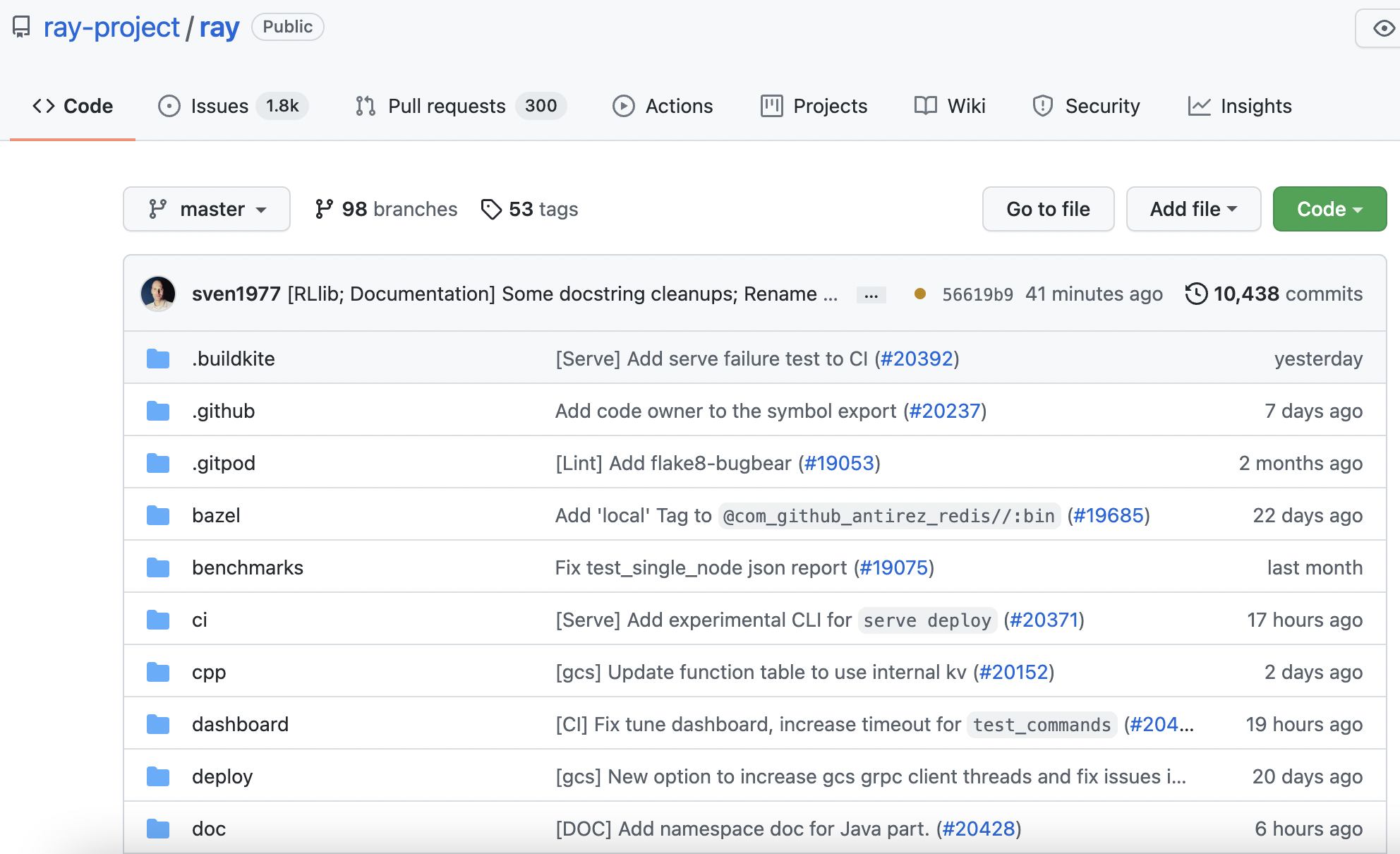
这将弹出一个菜单,提供三个选项:“Clone”(提供用于克隆仓库的 HTTPS/SSH 链接)、“Open with GitHub Desktop”和“Download ZIP”。右键点击“Download Zip”。这将在您的光标附近打开一个弹出窗口。选择“Copy Link Address”(复制链接地址)
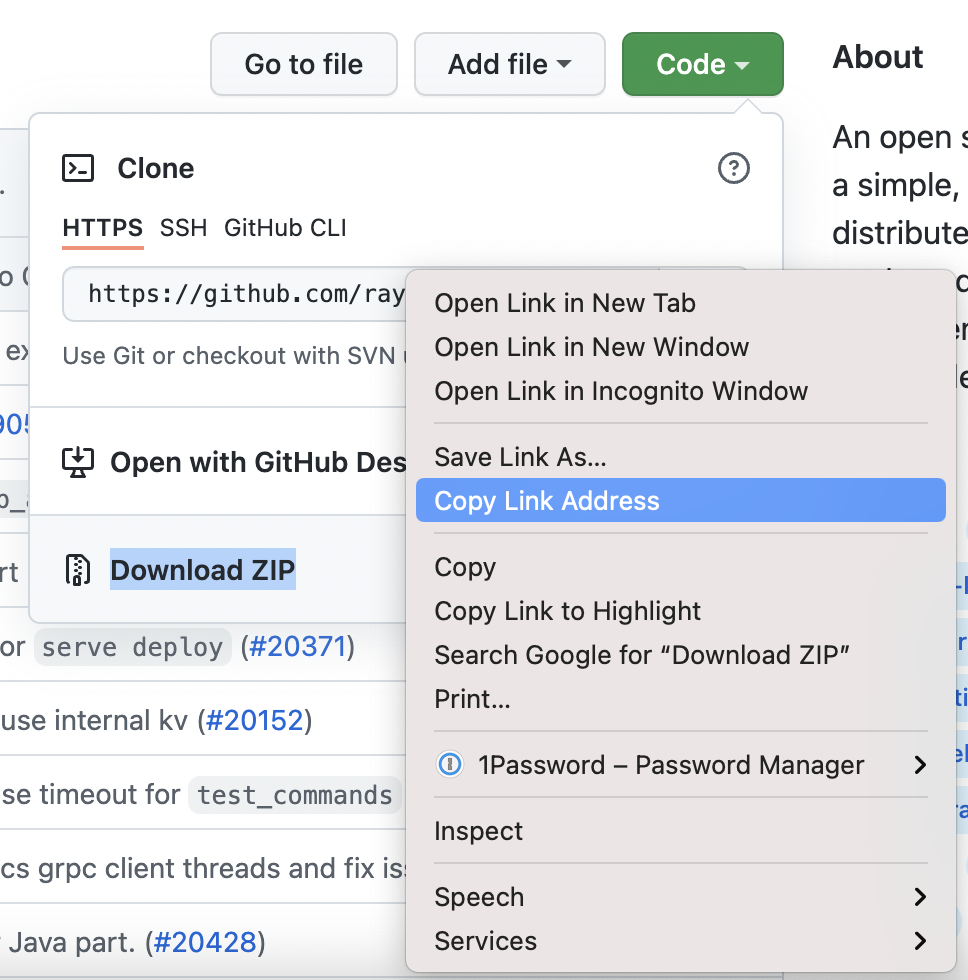
现在您的 HTTPS 链接已复制到剪贴板。您可以将其粘贴到您的 runtime_env 字典中。
警告
如果 URL 始终指向最新 commit,不推荐使用 Git 提供商“下载为 Zip”功能提供的 HTTPS URL。例如,在 GitHub 上使用此方法生成的链接始终指向所选分支的最新 commit。
通过在 runtime_env 字典中指定此链接,您的 Ray 集群始终使用所选分支的最新 commit。这会带来一致性风险:如果在集群节点正在拉取仓库内容时向远程 Git 仓库推送更新,则某些节点可能会拉取您推送之前的版本,而另一些节点可能会拉取推送之后的版本。为了保持一致性,最好指定特定的 commit,以便所有节点使用相同的包。请参阅“选项 2:手动创建 URL”来创建指向特定 commit 的 URL。
选项 2:手动创建 URL(实现较慢,但推荐用于生产环境)#
第二种选项是根据您的具体用例与以下示例之一进行模式匹配,手动创建此 URL。**推荐使用此方法**,因为它提供了对生成依赖 zip 文件时使用哪个仓库分支和 commit 的更精细控制。这些选项可以防止 Ray 集群上的一致性问题(更多信息请参阅上面的警告)。要创建 URL,请选择下面适合您用例的 URL 模板,并用您仓库中的具体值填充所有括号中的参数(例如 [username]、[repository] 等)。例如,假设您的 GitHub 用户名是 example_user,仓库名称是 example_repository,期望的 commit hash 是 abcdefg。如果 example_repository 是公共的并且您想获取 abcdefg commit(这与第一个示例用例匹配),则 URL 将是
runtime_env = {"working_dir": ("https://github.com"
                               "/example_user/example_repository/archive/abcdefg.zip")}
以下是不同用例及其对应的 URL 列表
示例:从公共 GitHub 仓库中获取特定 commit hash 的包
runtime_env = {"working_dir": ("https://github.com"
                               "/[username]/[repository]/archive/[commit hash].zip")}
示例:在**开发期间**使用个人访问令牌从私有 GitHub 仓库获取包。**对于生产环境**,请参阅本文档了解如何安全地认证私有依赖项。
runtime_env = {"working_dir": ("https://[username]:[personal access token]@github.com"
                               "/[username]/[private repository]/archive/[commit hash].zip")}
示例:从公共 GitHub 仓库的最新 commit 获取包
runtime_env = {"working_dir": ("https://github.com"
                               "/[username]/[repository]/archive/HEAD.zip")}
示例:从公共 Bitbucket 仓库中获取特定 commit hash 的包
runtime_env = {"working_dir": ("https://bitbucket.org"
                               "/[owner]/[repository]/get/[commit hash].tar.gz")}
提示
推荐指定特定的 commit,而不是始终使用最新 commit。这可以防止多节点 Ray 集群上的一致性问题。更多信息请参阅“选项 1:下载 Zip”下面的警告。
在 runtime_env 字典中指定 URL 后,您可以将该字典传递给 ray.init() 或 .options() 调用。恭喜!您现在已成功在 GitHub 上远程托管了 runtime_env 依赖项!
调试#
如果 runtime_env 无法设置(例如,网络问题、下载失败等),Ray 将无法调度需要该 runtime_env 的任务/actor。如果您调用 ray.get,它将引发 RuntimeEnvSetupError 并带有详细的错误消息。
import ray
import time

@ray.remote
def f():
    pass

@ray.remote
class A:
    def f(self):
        pass

start = time.time()
bad_env = {"conda": {"dependencies": ["this_doesnt_exist"]}}

# [Tasks] will raise `RuntimeEnvSetupError`.
try:
  ray.get(f.options(runtime_env=bad_env).remote())
except ray.exceptions.RuntimeEnvSetupError:
  print("Task fails with RuntimeEnvSetupError")

# [Actors] will raise `RuntimeEnvSetupError`.
a = A.options(runtime_env=bad_env).remote()
try:
  ray.get(a.f.remote())
except ray.exceptions.RuntimeEnvSetupError:
  print("Actor fails with RuntimeEnvSetupError")
Task fails with RuntimeEnvSetupError
Actor fails with RuntimeEnvSetupError
完整的日志始终可以在针对每个 actor、每个任务和每个作业环境的 runtime_env_setup-[job_id].log 文件中找到,或者在使用 Ray Client 时,在针对每个作业环境的 runtime_env_setup-ray_client_server_[port].log 文件中找到。
您还可以通过在启动 Ray 之前,在每个节点上设置环境变量 RAY_RUNTIME_ENV_LOG_TO_DRIVER_ENABLED=1 来启用 runtime_env 调试日志流,例如在 Ray 集群配置文件中使用 setup_commands(参考)。这将把完整的 runtime_env 设置日志消息打印到 Driver(调用 ray.init() 的脚本)。
示例日志输出
ray.init(runtime_env={"pip": ["requests"]})
(pid=runtime_env) 2022-02-28 14:12:33,653       INFO pip.py:188 -- Creating virtualenv at /tmp/ray/session_2022-02-28_14-12-29_909064_87908/runtime_resources/pip/0cc818a054853c3841171109300436cad4dcf594/virtualenv, current python dir /Users/user/anaconda3/envs/ray-py38
(pid=runtime_env) 2022-02-28 14:12:33,653       INFO utils.py:76 -- Run cmd[1] ['/Users/user/anaconda3/envs/ray-py38/bin/python', '-m', 'virtualenv', '--app-data', '/tmp/ray/session_2022-02-28_14-12-29_909064_87908/runtime_resources/pip/0cc818a054853c3841171109300436cad4dcf594/virtualenv_app_data', '--reset-app-data', '--no-periodic-update', '--system-site-packages', '--no-download', '/tmp/ray/session_2022-02-28_14-12-29_909064_87908/runtime_resources/pip/0cc818a054853c3841171109300436cad4dcf594/virtualenv']
(pid=runtime_env) 2022-02-28 14:12:34,267       INFO utils.py:97 -- Output of cmd[1]: created virtual environment CPython3.8.11.final.0-64 in 473ms
(pid=runtime_env)   creator CPython3Posix(dest=/private/tmp/ray/session_2022-02-28_14-12-29_909064_87908/runtime_resources/pip/0cc818a054853c3841171109300436cad4dcf594/virtualenv, clear=False, no_vcs_ignore=False, global=True)
(pid=runtime_env)   seeder FromAppData(download=False, pip=bundle, setuptools=bundle, wheel=bundle, via=copy, app_data_dir=/private/tmp/ray/session_2022-02-28_14-12-29_909064_87908/runtime_resources/pip/0cc818a054853c3841171109300436cad4dcf594/virtualenv_app_data)
(pid=runtime_env)     added seed packages: pip==22.0.3, setuptools==60.6.0, wheel==0.37.1
(pid=runtime_env)   activators BashActivator,CShellActivator,FishActivator,NushellActivator,PowerShellActivator,PythonActivator
(pid=runtime_env)
(pid=runtime_env) 2022-02-28 14:12:34,268       INFO utils.py:76 -- Run cmd[2] ['/tmp/ray/session_2022-02-28_14-12-29_909064_87908/runtime_resources/pip/0cc818a054853c3841171109300436cad4dcf594/virtualenv/bin/python', '-c', 'import ray; print(ray.__version__, ray.__path__[0])']
(pid=runtime_env) 2022-02-28 14:12:35,118       INFO utils.py:97 -- Output of cmd[2]: 3.0.0.dev0 /Users/user/ray/python/ray
(pid=runtime_env)
(pid=runtime_env) 2022-02-28 14:12:35,120       INFO pip.py:236 -- Installing python requirements to /tmp/ray/session_2022-02-28_14-12-29_909064_87908/runtime_resources/pip/0cc818a054853c3841171109300436cad4dcf594/virtualenv
(pid=runtime_env) 2022-02-28 14:12:35,122       INFO utils.py:76 -- Run cmd[3] ['/tmp/ray/session_2022-02-28_14-12-29_909064_87908/runtime_resources/pip/0cc818a054853c3841171109300436cad4dcf594/virtualenv/bin/python', '-m', 'pip', 'install', '--disable-pip-version-check', '--no-cache-dir', '-r', '/tmp/ray/session_2022-02-28_14-12-29_909064_87908/runtime_resources/pip/0cc818a054853c3841171109300436cad4dcf594/requirements.txt']
(pid=runtime_env) 2022-02-28 14:12:38,000       INFO utils.py:97 -- Output of cmd[3]: Requirement already satisfied: requests in /Users/user/anaconda3/envs/ray-py38/lib/python3.8/site-packages (from -r /tmp/ray/session_2022-02-28_14-12-29_909064_87908/runtime_resources/pip/0cc818a054853c3841171109300436cad4dcf594/requirements.txt (line 1)) (2.26.0)
(pid=runtime_env) Requirement already satisfied: idna<4,>=2.5 in /Users/user/anaconda3/envs/ray-py38/lib/python3.8/site-packages (from requests->-r /tmp/ray/session_2022-02-28_14-12-29_909064_87908/runtime_resources/pip/0cc818a054853c3841171109300436cad4dcf594/requirements.txt (line 1)) (3.2)
(pid=runtime_env) Requirement already satisfied: certifi>=2017.4.17 in /Users/user/anaconda3/envs/ray-py38/lib/python3.8/site-packages (from requests->-r /tmp/ray/session_2022-02-28_14-12-29_909064_87908/runtime_resources/pip/0cc818a054853c3841171109300436cad4dcf594/requirements.txt (line 1)) (2021.10.8)
(pid=runtime_env) Requirement already satisfied: urllib3<1.27,>=1.21.1 in /Users/user/anaconda3/envs/ray-py38/lib/python3.8/site-packages (from requests->-r /tmp/ray/session_2022-02-28_14-12-29_909064_87908/runtime_resources/pip/0cc818a054853c3841171109300436cad4dcf594/requirements.txt (line 1)) (1.26.7)
(pid=runtime_env) Requirement already satisfied: charset-normalizer~=2.0.0 in /Users/user/anaconda3/envs/ray-py38/lib/python3.8/site-packages (from requests->-r /tmp/ray/session_2022-02-28_14-12-29_909064_87908/runtime_resources/pip/0cc818a054853c3841171109300436cad4dcf594/requirements.txt (line 1)) (2.0.6)
(pid=runtime_env)
(pid=runtime_env) 2022-02-28 14:12:38,001       INFO utils.py:76 -- Run cmd[4] ['/tmp/ray/session_2022-02-28_14-12-29_909064_87908/runtime_resources/pip/0cc818a054853c3841171109300436cad4dcf594/virtualenv/bin/python', '-c', 'import ray; print(ray.__version__, ray.__path__[0])']
(pid=runtime_env) 2022-02-28 14:12:38,804       INFO utils.py:97 -- Output of cmd[4]: 3.0.0.dev0 /Users/user/ray/python/ray
详情请参阅日志目录结构。